You can add a cPanel email account to your Apple IOS mobile and be able to automatically check emails in a specific time or manually do it. You can get a new email notification on your mobile.
1. On the main screen of your Apple device, click on the Settings icon.

2. Scroll down and tap on Mail.

3. Tap on Account.

4. Select Add Account.

5. Tap on Other.

6. Tap on Add Mail Account.

7. Enter the following details, once complete tap Next:
Name: Your name
Email: Your full email address (ex: john@domain.com)
Password: Your email account password
Description: Add description such as My Company Name

8. Enter the following details, once complete tap Next:
Incoming Mail Server
Hostname: mail.domain.com
Username: Your full email address such as user@example.com
Password: Your email password.
Outgoing Mail Server:
Hostname: mail.domain.com
Username: You can leave blank
Password: You can leave blank

9. The account will now try to verify with the server, and you should see the indicator at the top of the screen.

10. If successful, the next screen will show the IMAP settings. Tap on Save.

11. You should see your new account listed. You can close this screen as the new email account has been set up and is ready to go.

12. You can access your newly added email account from the Apple Mail App.
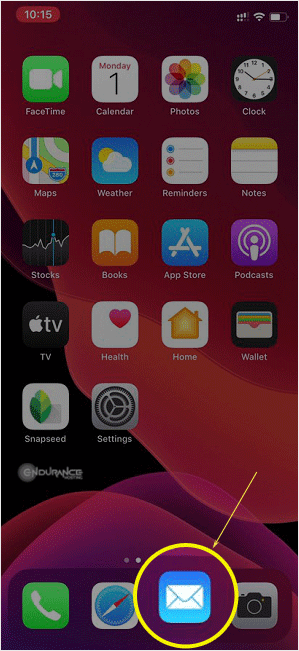
13. The inbox should start syncing and pulling in your email. This process can take up to a minute to complete but normally finishes in seconds.

PLUS: We also have this process outline in our video library. To see the video, click HERE.